These docs are in English. If you prefer German, write us at beta@clickprobe.ai.
Onboarding Guide
This guide walks a fresh user through the 7-step onboarding wizard at /app/setup. Target: first bug found in under 10 minutes.
Overview
After signing up and entering your billing details at /auth/welcome, you are redirected to the onboarding wizard. The wizard runs in 7 steps and remembers your progress — you can close the browser and return to where you left off. Once the wizard is complete, /app redirects you to the dashboard instead of the wizard.
Prerequisites
- A ClickProbe account (sign up at
clickprobe.ai) - A web application you want to test (must be reachable from the machine running the proxy)
- The ClickProbe proxy installed on that machine (Step 3 covers this)
Step 1: Welcome / Choose plan
What you see: A welcome screen with three plan cards (Solo Free, Team €49, Pro €149).
What to do: Select the plan that fits your usage. Solo is selected by default and costs nothing to start. Pro and Team plans require a credit card (you are redirected to the billing portal to add one; you can return to the wizard after).
Skip: You can skip plan selection and stay on Solo Free. You can upgrade later from /app/billing.
Troubleshooting:
- If you upgraded but the wizard still shows Solo: refresh the page and re-enter the wizard via
/app/setup. - Payment rejected: check the card in the billing portal at
/app/billing. Stripe test mode is used in staging.
Step 2: Create project
What you see: A form with three fields: Project name, Entry URL, and a short app description.
What to do:
- Enter a short name for the project (e.g.
My SaaS). - Enter the URL where the AI should start exploring (e.g.
http://localhost:3000orhttps://staging.myapp.com). See Testing Your App on localhost for how the local proxy reacheslocalhost, which ports work, and self-signed-cert / hot-reload caveats. - Write 1–3 sentences describing your app (e.g. “A task management app for software teams. Users can create tasks, assign them, and track progress on a Kanban board.”). The AI uses this to understand intent — a specific description produces better bug detection.
Skip: This step is non-skippable. A project is required for the rest of the wizard.
Troubleshooting:
- Entry URL unreachable: the proxy itself checks this when it first connects. You can still proceed and fix the URL later in project settings.
- Description too vague (“a web app”) → the AI will explore correctly but semantic bug detection degrades; be specific.
Step 3: Download proxy
What you see: An OS-detected install snippet. The page reads your browser’s User-Agent to determine your OS and shows the appropriate install command.
What to do: Copy and run the install command in your terminal.
Platform-specific commands:
| OS | Command |
|---|---|
| macOS / Linux | curl -fsSL https://clickprobe.ai/install.sh | bash |
| Windows | irm https://clickprobe.ai/install.ps1 | iex |
| Debian / Ubuntu | sudo apt install ./clickprobe-proxy_<version>_amd64.deb (download from clickprobe.ai/downloads/) |
| RHEL / Fedora | sudo dnf install ./clickprobe-proxy-<version>-1.x86_64.rpm (download from clickprobe.ai/downloads/) |
| Arch / Alpine / NixOS / other | .tar.gz tarball — download from clickprobe.ai/downloads/, tar -xzf it, then sudo install -m 0755 clickprobe-proxy /usr/local/bin/clickprobe-proxy |
After installation, the proxy binary is available as clickprobe-proxy on your PATH. Then bind it
to your account:
- Linux:
clickprobe-proxy install --device --service— this also registers a real systemd user unit, so the proxy keeps running in the background. - macOS / Windows:
clickprobe-proxy install --device—--serviceis accepted but does not register a background service on these platforms in this beta (see Step 4 for how to keep the proxy connected).
Linux users: the .deb and .rpm packages drop a systemd user unit at /usr/lib/systemd/user/clickprobe-proxy.service but do not enable it — run clickprobe-proxy install --service --label <name> after completing Step 4 (OAuth) to register it with your user session. Headless servers need loginctl enable-linger $USER first; the installer prints that hint on failure.
Note: The proxy is a single binary; no Docker or runtime dependencies are needed. Binaries are
currently unsigned for the beta — Windows SmartScreen (“More info → Run anyway”) or macOS
Gatekeeper (xattr -d com.apple.quarantine /path/to/clickprobe-proxy) will warn on first run; see
the download page for the exact bypass steps. install.sh and
install.ps1 verify the SHA256 checksum automatically before installing.
Skip: You can skip this step if the proxy is already installed, or if you want to proceed and install it later.
Step 4: Connect / OAuth
What you see: A “Connect proxy” button that opens a new browser tab for OAuth, and a spinner that reads “Waiting for proxy…”
What to do:
- Click “Connect proxy”. This opens
/auth/proxy/authorize?project_id=…in a new tab. - Log in if prompted. Approve the device authorization.
- Run
clickprobe-proxy service runin your terminal, and leave it running — this is what actually keeps the proxy connected. (There is no background/auto-starting service yet in the beta on macOS or Windows; on Linux,install --serviceregisters a real systemd user unit — see Step 3.) - Return to the wizard tab. The spinner turns green (“Proxy connected”) automatically when the proxy establishes its WebSocket connection to the broker.
Skip: Skip if you want to connect the proxy later. The exploration step (Step 5) requires a connected proxy.
Troubleshooting:
First, check which layer failed. Run clickprobe-proxy status (or read the local WebUI
dashboard’s “Last dial failure” row) — since PLAN-280, the proxy names which layer of the
connection actually failed instead of leaving you to guess:
dns_no_such_host— the tunnel endpoint’s hostname could not be resolved at all. This is a condition on ClickProbe’s side, not your network, firewall, or corporate proxy — no client-side fix (including theHTTPS_PROXYworkaround below) can resolve a hostname that does not exist. Check status.clickprobe.ai or try again later; if it persists, see the contact note at the end of this section.tcp_timeoutortls_error— this is the genuine “blocked by a corporate firewall or TLS-intercepting proxy” case the section below addresses.tcp_refusedorhttp_status— see Proxy Connection Troubleshooting for the full breakdown.
WebSocket blocked by corporate firewall (tcp_timeout / tls_error above):
- The proxy connects to
wss://broker.clickprobe.aion port 443. - Some corporate proxies block WebSocket upgrades even on port 443, or intercept TLS and rewrite the certificate.
- Try: set
HTTPS_PROXY=http://your-corporate-proxy:8080before running the proxy. - Fallback: run the proxy on a machine outside the corporate network (a VPS, GitHub Codespace, or local machine on a personal network) and point it at your app’s staging URL.
- If WebSocket is permanently blocked: email
beta@clickprobe.aidescribing whatclickprobe-proxy statusshowed. (Beta note: inbound email to@clickprobe.aiaddresses is affected by a known, tracked DNS issue — if you don’t hear back within a few days, your message may not have arrived; please also try reaching us through whatever channel put you in the beta.) - Full corporate-network walkthrough (TLS interception, the outbound host allowlist, reading the local dashboard’s status): Proxy Connection Troubleshooting.
Step 5: First exploration
What you see: A “Start exploration” button and, after clicking, an embedded live session view showing the AI’s reasoning stream and screenshots.
What to do: Click the button. The AI opens the entry URL you set in Step 2 and begins exploring. You can watch the live session unfold — you don’t need to do anything. Before you click it, read What the Tester Does to Your App — it clicks buttons it does not understand, including destructive ones.
There is no fixed time limit on this session — it runs until the AI finishes exploring, or until your per-account budget cap (set in /app/billing) would be exceeded, at which point it stops early and shows a “Stopped early to stay under budget” card (not an error).
Skip: You can skip straight to Step 6 if you already ran a session previously.
Troubleshooting:
Empty result (0 bugs, 0 pages):
- Confirm the entry URL is reachable from the proxy machine:
curl <entry_url>. - Check that the app doesn’t require authentication before rendering content — the AI starts as an unauthenticated user.
- Make the app description more specific. “A web app” gives the AI no context; “A Kanban task manager where users can drag cards between columns” lets it predict and verify cause-effect chains.
- Check the proxy health dot in the header. Amber or red means the proxy lost its connection mid-session.
Session stops early:
- Budget cap reached — check
/app/billingand top up or raise the cap. - Proxy disconnected — reconnect the proxy and retry.
Step 6: Review findings
What you see: A summary card: N bugs found, X pages explored, Y steps taken, €Z cost.
What to do:
- Click “See bugs” → you land on
/app/bugs?session_id=…filtered to this session’s bugs. - Click “Explore again” → returns to Step 5 for another session on the same project.
At this point, you have completed the core flow. Step 7 shows onward actions.
Step 7: Done
What you see: Four next-step cards.
| CTA | Destination | What it enables |
|---|---|---|
| Invite team | /app/team | Add teammates so they receive bug alerts |
| Configure webhooks | /app/settings/webhooks | Route bug notifications to Slack, Teams, or Discord |
| Set budget alert | /app/billing | Get an email before you hit your monthly cap |
| Add a tracker | /app/settings/connect-git | Auto-export confirmed bugs to GitHub Issues or GitLab |
This is also where completed_at is written to the database — after this point, /app redirects to the dashboard instead of the wizard.
Returning to the wizard: The wizard is always accessible at /app/setup from the sidebar. Useful for onboarding new projects or reviewing the proxy install steps.
Keyboard Cheatsheet
| Chord | Action |
|---|---|
g d | Go to /app/dashboard |
g s | Go to /app/setup (wizard) |
These chords extend the global keyboard HUD. Press ? anywhere in the app to see all available chords.
Within the wizard, Tab moves between form fields; Enter submits the current step.
Troubleshooting Summary
| Problem | First check | Second check |
|---|---|---|
| Proxy spinner never turns green | Proxy is running? (ps aux | grep clickprobe) | WebSocket allowed on port 443? |
| Step 5 shows 0 bugs | Entry URL reachable from proxy machine | App description specific enough? |
| Session stops early | Budget cap in /app/billing | Proxy connection stable? |
| Cert warning during exploration (your app’s own HTTPS) | See self-signed certificates | Using plain HTTP locally instead? |
| Cert error connecting to ClickProbe’s cloud | See corporate TLS interception | Interception CA in your OS trust store? |
| Corporate WebSocket block | Set HTTPS_PROXY env var | Contact support for polling mode |
| Wizard won’t advance past Step 2 | Check that project form has all required fields | API error in browser console? |
Watching a session locally
Each ClickProbe proxy ships with a local WebUI for watching sessions in real time, without needing to log in to the cloud dashboard. This is useful for:
- Verifying the proxy is authenticated and connected before you trigger a cloud session.
- Watching Chromium-headless sessions step-by-step as they run.
- Browsing the last 50 sessions this proxy has handled.
- Downloading a diagnostics bundle to attach to a support email.
The WebUI binds to http://127.0.0.1:9100 (loopback only — never externally
reachable) and is protected by a per-startup random token.
Prerequisite: the WebUI reads a token file written by a running daemon — clickprobe-proxy service run must already be active in another terminal (see Step 4). Without it, webui exits with
error: no running daemon.
Open the WebUI
clickprobe-proxy webuiThis prints the local URL + token and opens your default browser to the dashboard. If you prefer to just print the URL without launching a browser:
clickprobe-proxy webui --print-onlyWhat you’ll see
| Page | Purpose | Screenshot |
|---|---|---|
| Dashboard | Auth state, tunnel state, Chromium version, port + token | 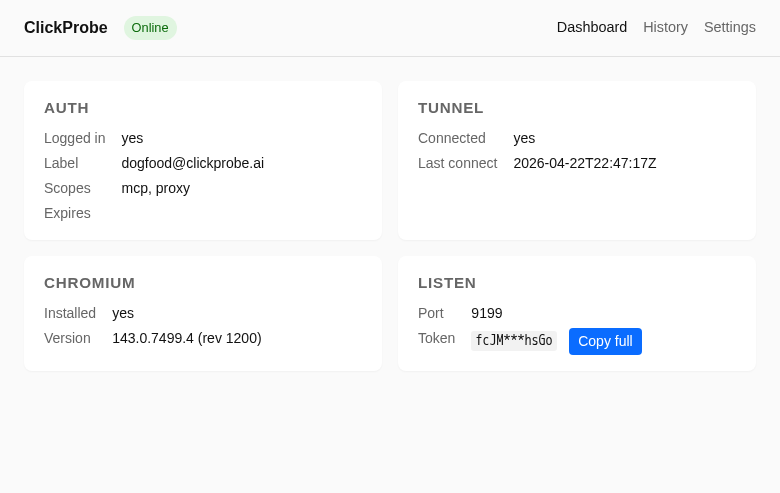 |
| Sessions | Last 50 local sessions, deep-linkable to https://app.clickprobe.ai/app/sessions/<id>/live | 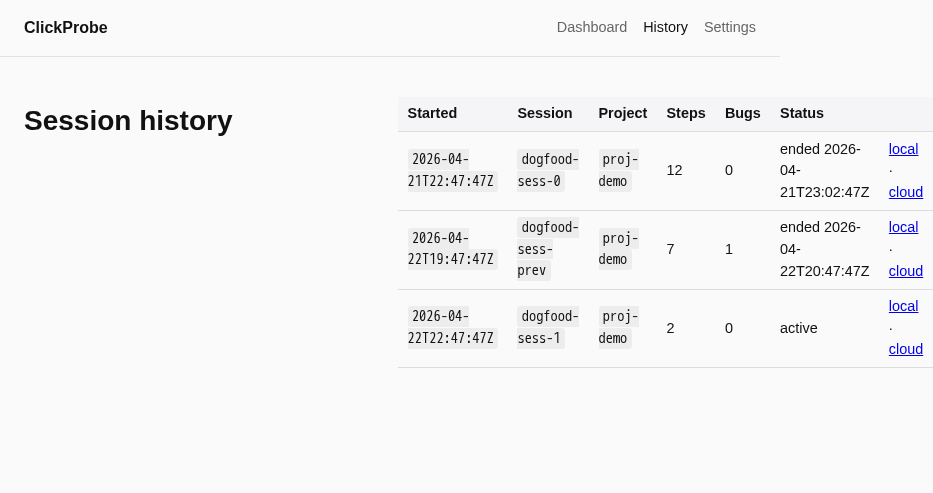 |
| Live session | Step-by-step view of the currently-running session with the latest screenshot the AI has captured. Screenshots appear only when the AI actually takes one — the exploration prompt is deliberately sparing about this, so the pane may sit on “Waiting for screenshot…” between captures. | 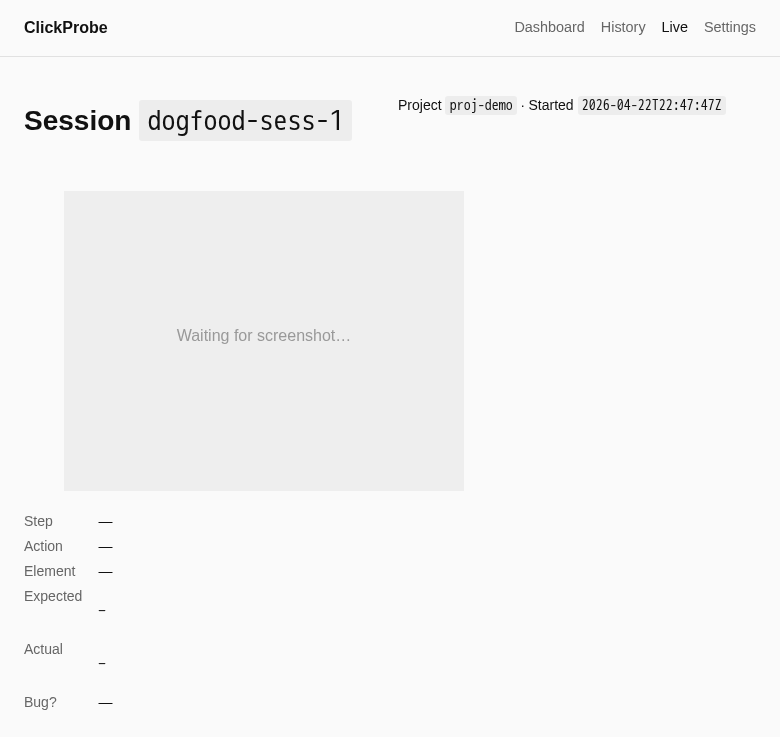 |
| Settings | Edit <data-dir>/config.yaml: port, enabled, log level, headless mode | 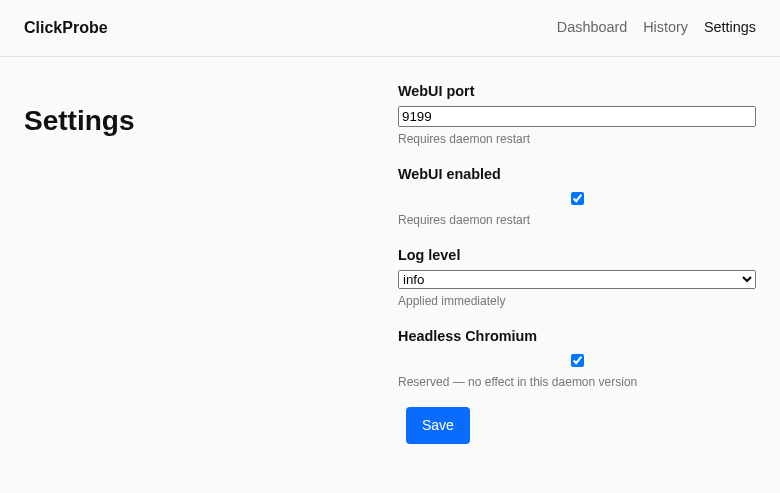 |
Sharing a diagnostics bundle
If the proxy misbehaves, the quickest path to support is:
- Open the dashboard (
clickprobe-proxy webui). - Click Diagnostics → Download bundle.
- Email the resulting
clickprobe-diag.ziptobeta@clickprobe.ai. It contains the last 1000 log lines, a redacted copy of your config (the WebUI token is stripped), current state, and version info.
Related
- Testing Your App on localhost — how the proxy reaches
localhost, which ports work, self-signed certs, and hot-reload caveats - Proxy Connection Troubleshooting — corporate proxies, TLS interception, the Chromium download, and the outbound host allowlist
- Test Credentials — giving the AI a login for apps behind a login wall, and exactly what happens to that password
- What the Tester Does to Your App — it clicks buttons it does not understand, including destructive ones; how Sensitive areas fences that off, and exactly what that does and does not cover